
Cricut Design Space Help for Beginners – How to Download and Use Design Space
This post may contain affiliate links that won’t change your price but will share some commission.
If you’ve recently purchased a Cricut machine, it won’t be long before you find yourself searching for Cricut Design Space help. Having a Cricut machine is extremely freeing and offers so many new avenues of projects to try, from vinyl to detailed paper crafts, custom t-shirt designs, and more. However, if you want to make your Cricut work, you have to learn how to use the Cricut Design Space software.
Curious about owning an Explore, Maker, or Joy? Find out which one is best for your needs here.
What is Cricut Design Space?
Design Space is Cricut’s software for operating your machine. Before Design Space, there was the Cricut Expression machine that used cartridges; even learning how to use the simpler model was overwhelming, but now with Design Space being used with the Explore, Maker, and Joy machines, you have to learn an entire suite of software to craft with, known as Design Space.
Design Space Components
Design Space offers so much in conjunction with your Cricut model and only continues to improve upon its features and capabilities.
- Project ideas from Cricut and designs to stir your own creativity.
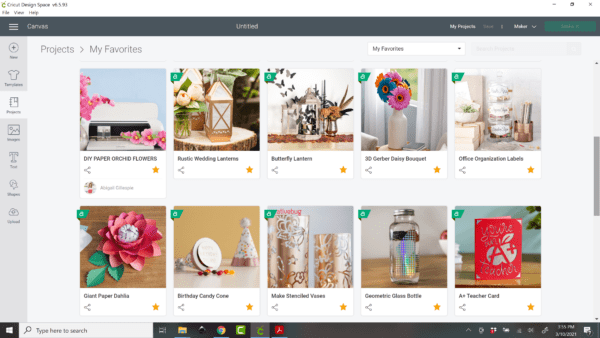
- A Canvas with a variety of functionality for editing text, images, and designing your project.
- Cricut Access images. Cricut has its own database of images and SVG files. (Of course, you can still use Design Space regardless of whether you subscribe to Cricut Access.)
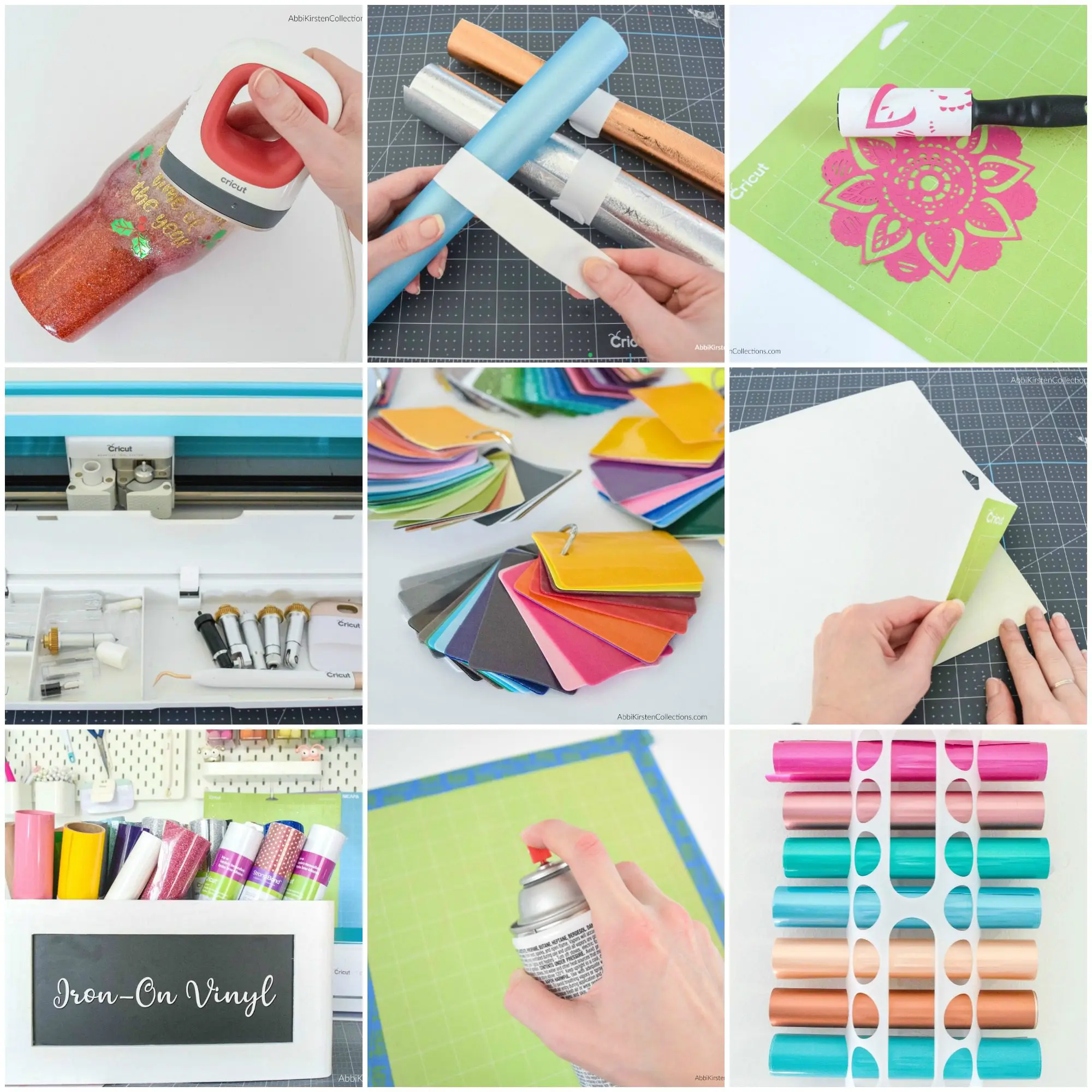
- A variety of cutting materials. You have wonderful choices for selecting the materials you plan to have your machine cut. Cricut can do so much, from writing with your favorite fonts to vinyl, iron-on for shirts and bags, foiling (check out my foil labels) and debossing, etc.
How to Download and Install the Cricut Design Space App
Before we jump into the Cricut Design Space help printables, I want to make sure you know how to install the Design Space app on your desktop or mobile device.
Design Space App for Desktop
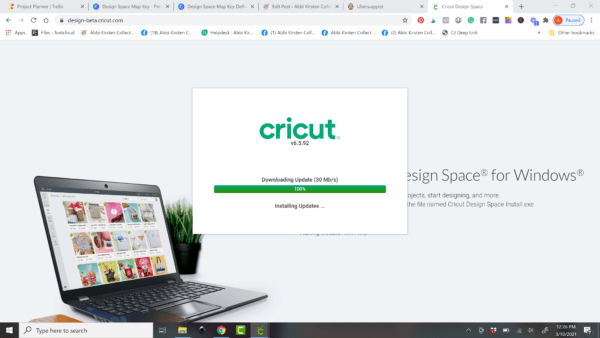
- To install Design Space on your Mac or PC computer, you will need to go to this link and click on download.
- The file will either automatically save to your downloads, or you’ll be asked to choose a file location. I recommend your desktop.
- Next, double-click on the downloaded file and follow the prompts to complete the installation.
- Once installed, Design Space will open for you, and you can set up your account.
- After setting a username and password, go to the 3 lines at the top left side of the screen and select New Machine Set-Up to sync your Cricut Maker, Explore, or Joy machine with Design Space.
Design Space App for Mobile
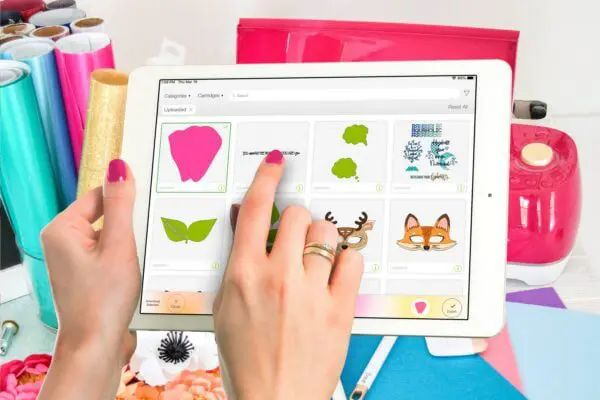
If you do not own a computer or laptop, you can use your iPhone or iPad. However, I highly recommend owning a computer at some point, so you’re not limited by certain functionality. To access Design Space for iPads or phones, download the app, then open the app and create your account.
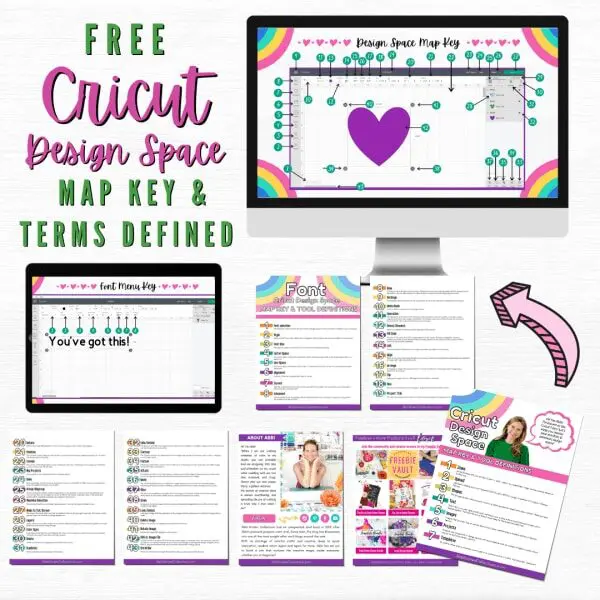
Cricut Design Space – Free Printable PDF Guide
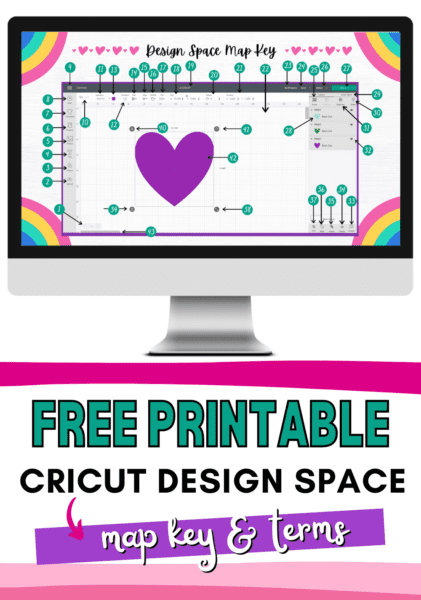
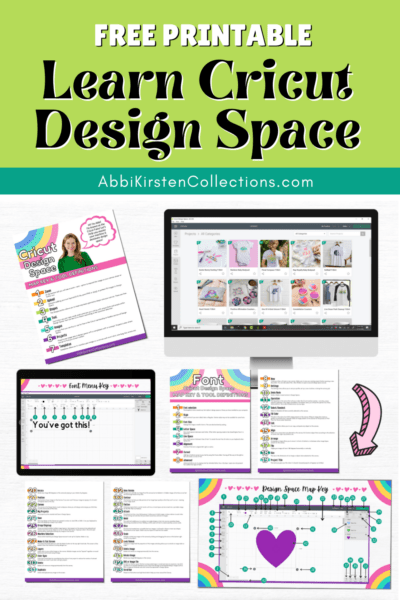
Once you’ve installed Design Space, it’s time to start learning your software. This is usually the moment when beginners get overwhelmed. I’m here to transform your confusion into confidence with my Free Design Space Map Key and Term Definition Printable.
The free guide helps you learn the Design Space layout and each tool’s purpose.
Download Your Free Cricut Guide
Download this freebie by signing up via the form below. If you are already a member, then log in right here and find it in the printable section or search design #131.
The Cricut Freedom Workshop
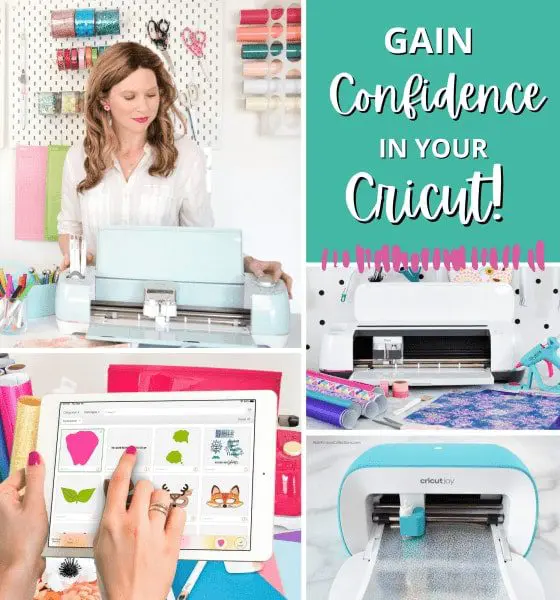
Let’s take this Cricut Design Space help to the next level and follow along as you watch several of these tools in action. I want to invite you to my FREE Cricut Freedom Workshop here, where you’ll Learn my 3 Key Secrets to Mastering Your Cricut Machine (WITHOUT TECH CONFUSION OR OVERWHELM).
- How to upload an SVG.
- What an SVG is.
- How to use the slice, weld, attach, flatten, and contour tools.
- Why learning Cricut and Design Space from YouTube is confusing you.
- My 3-step system to mastering your Cricut, craft projects, and customizing any design.
- You’ll also get an opportunity to join me and thousands of other crafty besties inside an exclusive Cricut crafting and design community!
About Abbi Kirsten
Welcome to my colorful corner of the internet, where we play with vibrant crafts and unlock your creative magic! Hang out with me and get lost in a fun array of projects, tutorials, and products, from stunning papercraft ideas to flower templates, Cricut help for beginners, and endless crafter’s hacks.
Join A-Star Crafters and participate in monthly Craft-Alongs in our community Facebook group!



I’ve had my Cricut Maker 3 for about a year now but still haven’t mastered it.. I can do small things here and there but not much so I am downloading this and printing it off so I can get better acquainted with all that it does!!
Great points here about “Cricut Design Space Help for Beginners – How to Download and Use Design Space”.